
Set up Two-Factor Authentication for your Joomla administrator Area
Cuffe.net will have provided a strong password to access the administrator area or backend of your website. If a hacker or any unauthorised person gains access to the administrator area of your website they will have full access to your site files, which can then create havoc at best, at worst destroy your credibility, and steal any customer details you store on your site. You must do all that you can to protect the administrator area of your website. If you are using a PC that has malware installed unbeknown to you your passwords could be stolen. Using Two-Factor Authentication increases the security of your administrator area. The following guidance is based on using the Google Authenticator App
Download the "Google Authenticator App" and install it on your phone Other similar apps are available such as Bitwarden.

Now go to your computer
On your computer open your browser and go to the "Joomla Administrator Login" page by typing https://yoursitename.com/administrator into the address bar.
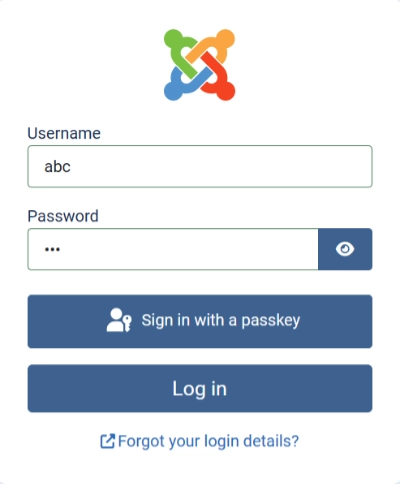
Log in to your administrator area by entering your username and password.
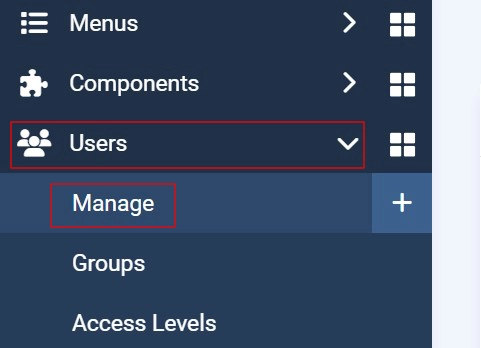
You are now logged in to your home dashboard, click the menu item "Users" from the menu bar on the left, then select "Manage" to open the users list.
Select your username from the list to open your user settings.
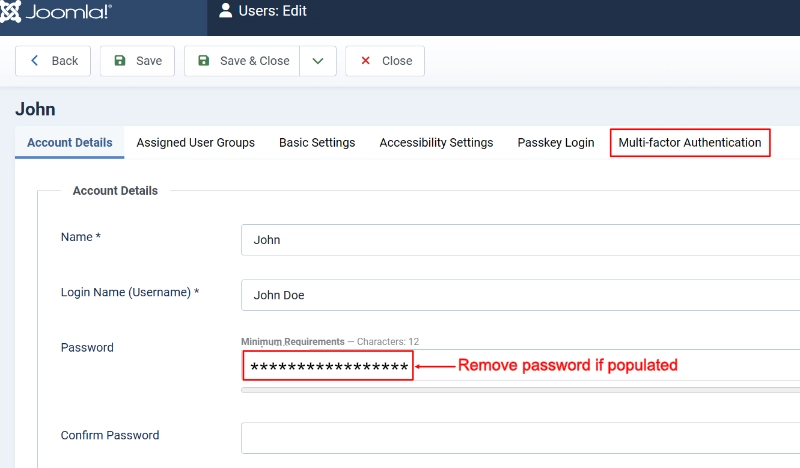
Important! to avoid problems later when finally saving your 2FA setup.
If you allow your web browser to save passwords you will notice that the password field has been populated with your password and displayed as a series of stars / dots, if so, remove the password from the field by highlighting and backspacing it out.
when you have cleared the password field select the "multi–Factor Authentication" Tab
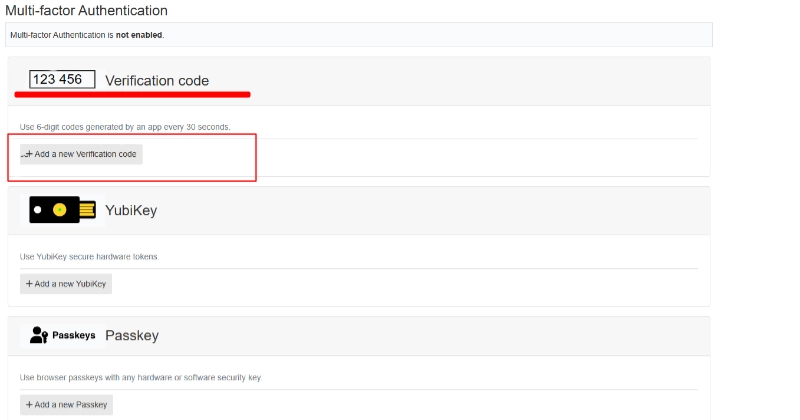
The following screen will open after selecting the Multi-factor Authentication tab. Various security options are offered on this screen, If you are familiar with these methods you may set them up on this page. For this tutorial we will select the six digit verification code by clicking the
"+ Add a new verification code"
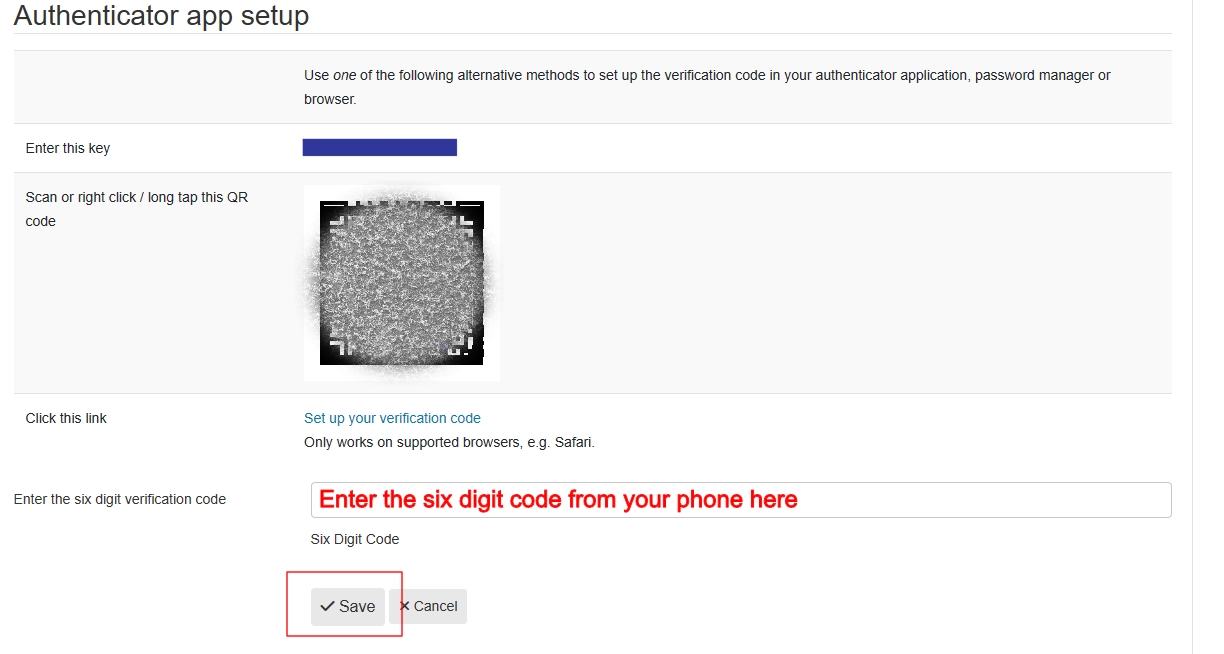
On the screen that appears you will see Step 1 & step 2. You have already downloaded the Google Authenticator App to your phone so go to the instructions for step 2
On your phone, open the Google Authenticator App.
tap the + sign to add an account. You then have the option to scan the barcode on your computer screen or enter the Account name and key manually from your computer screen.
Enter the six-digit code generated on your phone app into the field "Enter the six digit verification code" on the computer screen and click save.
Save again using the Green save button top left-hand corner of the Joomla desktop
Finally, copy the one-time emergency codes from the two-factor screen to a safe place. If you loose or do not have your phone to hand when logging in you can use the one-time codes to gain access to your site.